


How to make your posts stand out on the Web: The complete guide to social media formatting
Stand out on Facebook
With Facebook’s recent algorithm changes meaning less exposure for brands, most of us can use all the help we can get making posts stand out here. Here are some tactics to try.
Creative emoticons
They’re not always so professional, but they sure are fun. Emoticons can spice up a status update – here’s a list from Jess3 of some popular ones and how to make them.
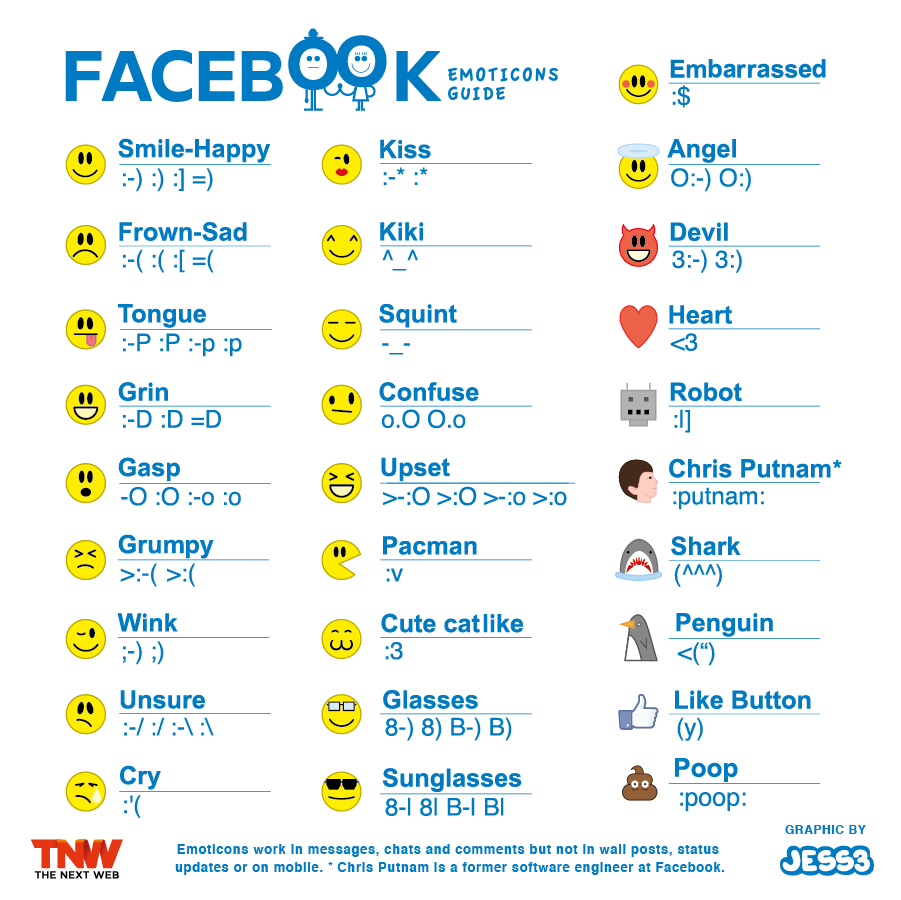
Contrary to the footnote at the bottom of the graphic, these images actually do work in status updates – even for brand pages.
Shorter is better
BlitzLocal looked at close to 120 billion Facebook impressions and discovered some interesting facts about lengths of posts. The researchers concluded:
“Longer posts tend to perform poorly. The ideal interaction being driven by posts is between 100 to 119 characters. Questions tend to drive interaction up by 10 to 20 percent.”

Pin posts
For crucial info, current offers or simply a post you really want to be seen, try pinning. A pinned post is an update that you manually select to stay at the top of your Timeline even as you add other posts to your page.
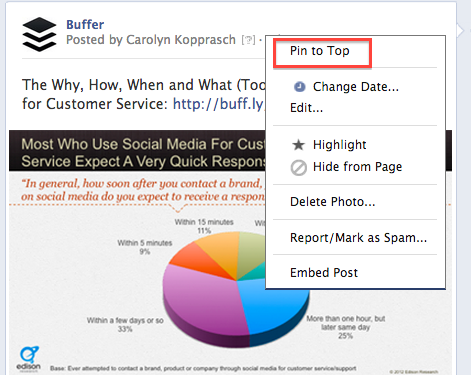
Highlight posts
A similar option is highlighting. A highlighted post expands across your page, taking up both columns. Highlight a horizontal photo to draw attention to it on your page.

Edit headline and summary text
One of the greatest things about posting to Facebook is how many of the fields are totally customizable. Use this flexibility to highlight the most shareable elements of your content.
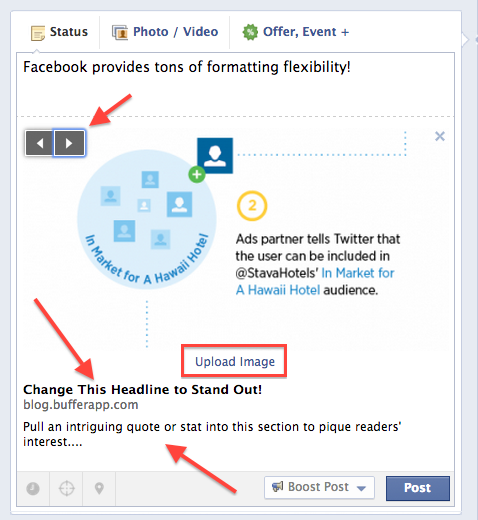
Pro tip: You can do all of this if you’re Buffering a post to Facebook, too (and gets lots more photo thumbnail choices)!
Size photos correctly
Because Facebook will automatically resize images that don’t match its specifications, size and aspect ratio of photos are super important.
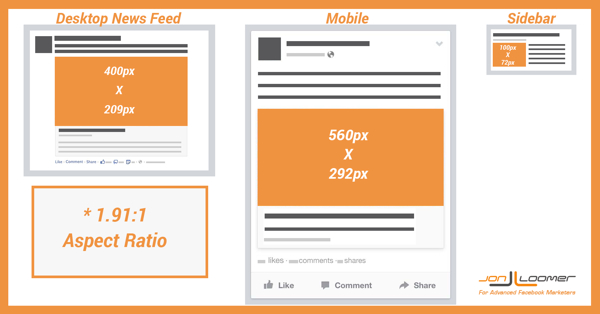
The aspect ratio is very specific: image widths need to be 1.91 times the height. This will mean the image scales perfectly in both the desktop News Feed and on mobile.
Images are now larger when shown in the News Feed, so keeping the aspect ratio right will make sure your images look great wherever the user sees them.
Recommended image sizes have also changed for Facebook’s desktop News Feed and mobile views. For the News Feed, Facebook recommends thumbnail images of 400×209 pixels. Images that are smaller than these dimensions will be resized to either 154×154 or 90×90 pixels.
On mobile, Facebook’s recommended image size is 560×292. Images smaller than this will be resized to 100×100 pixels.
This handy graphic from Jon Loomer shows the right sizes:
Next: Stand out on Google+