



ListObjects (Tables in Excel’s UI) are structured ranges. I use them constantly. I love the built-in named ranges and referring to them in VBA without a lot of hullabaloo. It’s as close to a database as you’re going to get in Excel. Recently I decided to automate a process of adding some payroll records to the end of a table. If I were using just a range, I would find the next available row like
That works most of the time for ListObjects too. It returns the row right below the last row of the ListObject. In most cases, when you add some data to that row, the ListObject expands. In the case where there is no data in the ListObject and there is only a blank row, however, it doesn’t work. The ListObject doesn’t expand, and even if it did, you would have a blank row.
The ListObject object has a InsertRowRange property that returns a Range object. When a ListObject has no data, it has a header row and a blank row[1] ready to accept data.
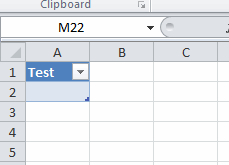
When you enter something into that row, it doesn’t give you a new insert row, it just sits there.
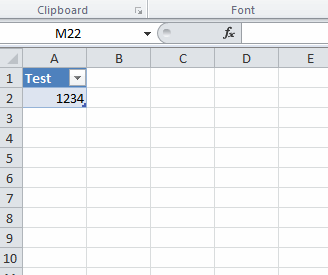
When I’m trying to write something to the end of a ListObject, I test to see if InsertRowRange is nothing[1]. Here’s a snippet
If lo.InsertRowRange Is Nothing Then
Set rStart = lo.HeaderRowRange.Cells(1).Offset(lo.ListRows.Count + 1)
Else
Set rStart = lo.InsertRowRange.Cells(1)
End If
If InsertRowRange is Nothing, then table isn’t empty and I offset down however many rows there are plus one. The old method of End(xlup) works in this situation too. I don’t find top down better or worse than bottom up, so use whatever you like. If InsertRowRange isn’t Nothing, that means there’s no data in the table. In that case, I can insert starting in InsertRowRange.
Here’s the whole procedure, if you’re looking for context.
Dim clsEmployees As CEmployees
Dim clsActives As CEmployees
Dim clsEmployee As CEmployee
Dim aOutput() As Variant
Dim lCnt As Long
Dim lo As ListObject
Dim rStart As Range
Set clsEmployees = New CEmployees
clsEmployees.FillFromRange wshEmployee.ListObjects(1).DataBodyRange
clsEmployees.FillCompsFromRange ActiveSheet.UsedRange.Offset(1)
Set clsActives = clsEmployees.FilterByActive(True).FilterByHasComps
ReDim aOutput(1 To clsActives.Count, 1 To 5)
For Each clsEmployee In clsActives
lCnt = lCnt + 1
aOutput(lCnt, 1) = clsEmployee.FullName
aOutput(lCnt, 2) = clsEmployee.Comps.Period
aOutput(lCnt, 3) = clsEmployee.Comps.TotalWages
aOutput(lCnt, 4) = clsEmployee.TotalBenes
aOutput(lCnt, 5) = clsEmployee.Comps.TotalTaxes
Next clsEmployee
Set lo = wshSalaries.ListObjects(1)
If lo.InsertRowRange Is Nothing Then
Set rStart = lo.HeaderRowRange.Cells(1).Offset(lo.ListRows.Count + 1)
Else
Set rStart = lo.InsertRowRange.Cells(1)
End If
rStart.Resize(UBound(aOutput, 1), UBound(aOutput, 2)).Value = aOutput
End Sub
[1]: Now you get the disclaimer. There’s a lot you can do with Tables in Excel. You can have a header row or now header row. You can have a totals row or not. And you can have a bunch of other stuff that makes this code not work. I use Tables a lot from a UI perspective and sometimes I have various features on or off. But the way I’m using a ListObject in this example is as a datastore. It’s not meant to be messed with – only for the VBA to read from and write to. In those cases, I make the Table the only thing on the sheet, it always has a header, and it never has a total row. If you want to use Tables differently, you’ll have to modify the code to accommodate the differences.