



Editing SQL Statements in External Data Queries
Surprisingly, I’ve been using the SendKeys macro from this post quite a bit. SendKeys is dangerous, as I’ve said, but I like to live on the edge. Jan Karel commented that I should use Alt-DDE, which gives me the Command Text box to edit the SQL query, but doesn’t give me the opportunity to change the name of the Connection. As I thought about it more, changing the Connection name happens one time and isn’t really the major source of my frustration. In fact, if I were a little more disciplined I could change the name when I setup the Connection in the Friendly Name box.
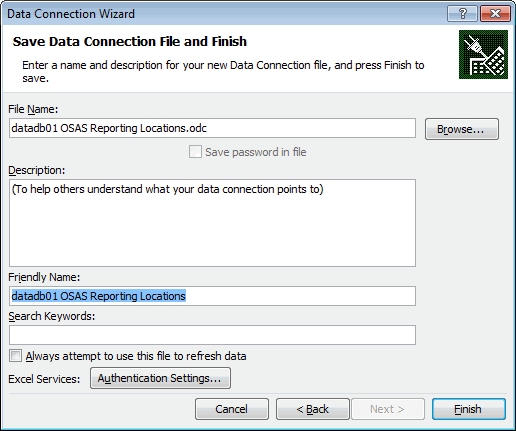
Then it’s settled. I’ll use Alt-DDE to edit the SQL and I’ll force myself to set the name when I set it up. But wait. One of the things I was really looking forward to in building my own Command Text box was making it bigger by default so I could see the whole SQL string (or at least most of it). The Alt-DDE textbox is only slightly better than the Connection properties Command Text textbox. See for yourself.
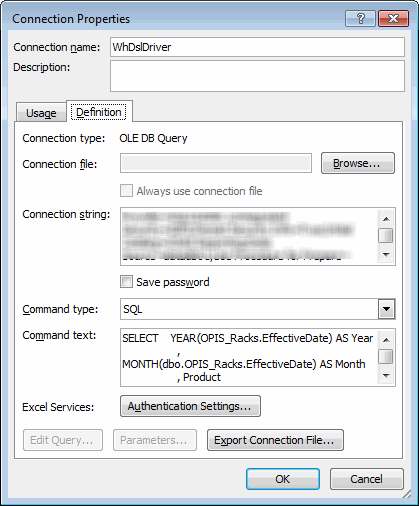
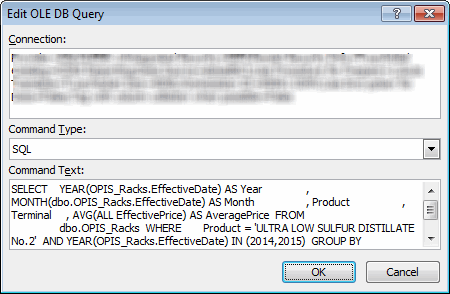
That’s a crappy UI. And that’s from someone who spends a lot of time in the Visual Basic Editor.
Then it’s settled. I’ll build my own form for changing the properties I want to change. It’s what I really wanted to do anyway, so why stop lying to myself. What kind of features should I build into this UI? A big textbox is a must. Also, I’d like to be able to add white space and line breaks. Oh, and if I could have SQL parsing, autoformatting, and autocomplete… So basically what I want is SQL Server Management Studio. I already have that. It’s called SQL Server Management Studio. That lead me to my next bit of genius. If I want to edit the SQL, even only a little, I should do it in SSMS. I added a couple of buttons to the Ribbon.
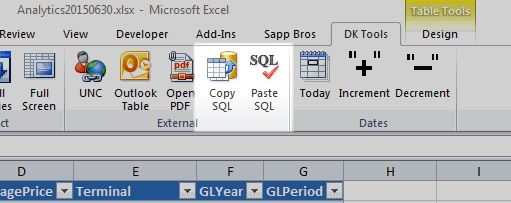
The Copy button copies the SQL to the clipboard, ready for me to paste into SSMS.
Dim doClip As MSForms.DataObject
Dim qt As QueryTable
On Error Resume Next
Set qt = ActiveCell.ListObject.QueryTable
On Error GoTo 0
If Not qt Is Nothing Then
Set doClip = New DataObject
doClip.SetText qt.CommandText
doClip.PutInClipboard
End If
End Sub
I leave the button enabled and check to make sure a QueryTable exists in the procedure. If I wanted to enable/disable the button, I would need to run a SelectionChange event constantly. I didn’t test it, but it seems like too much overhead. The Paste button looks like this
Dim doClip As MSForms.DataObject
Dim qt As QueryTable
Dim sOld As String
On Error Resume Next
Set qt = ActiveCell.ListObject.QueryTable
On Error GoTo 0
If Not qt Is Nothing Then
sOld = qt.CommandText
Set doClip = New DataObject
doClip.GetFromClipboard
qt.CommandText = doClip.GetText
doClip.SetText sOld
doClip.PutInClipboard
End If
End Sub
I added one little safety step in here because I know how I am. I take what’s in the clipboard and insert it into the CommandText property. But I put the previous CommandText in the Clipboard when I’m done. That way, when I get distracted and accidentally put something else in the Clipboard before I paste, I can (relatively) easily revert back to what it was.
I’ll give this a try and see how it goes.
One unsolicited plug: I use Red Gate’s SQL Prompt in SSMS. I can’t imaging having to work in SSMS without it. It’s pricey, but if you’re spending any time in SSMS, you should give it a try.