



I’m working on an application that Project Managers use to test their competencies against a competency framework. There’s a lot of questions and I don’t want to freak them out by showing all at once, so I use Conditional Formatting to unhide the questions in batches, as well as to highlight the next thing that needs to be answered, and to show how their self assessment corresponds to the ratings key.
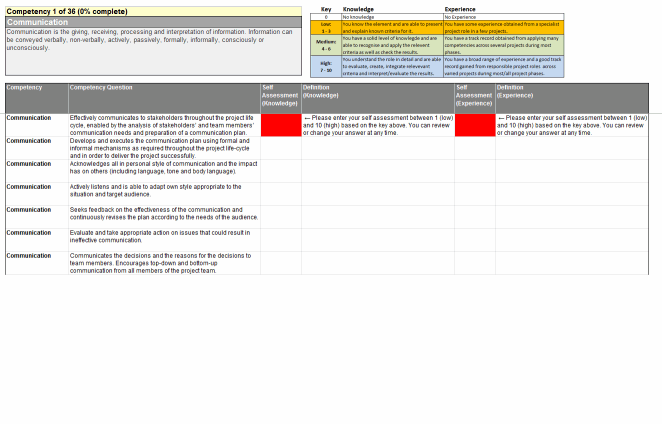
Here’s how it looks before users start filling it out: only the first batch of questions relating to the first competency area are displayed:
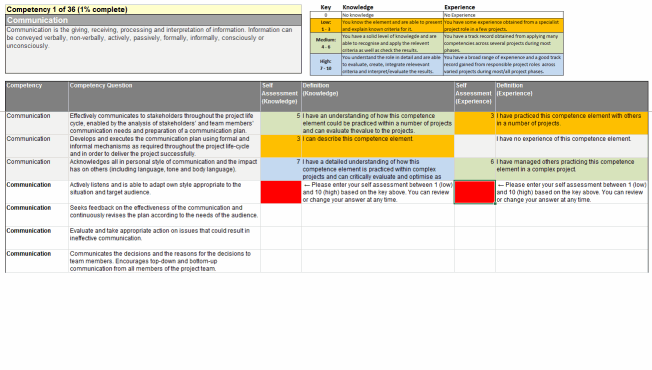
As they complete it, their answers get color-coded to match the key:
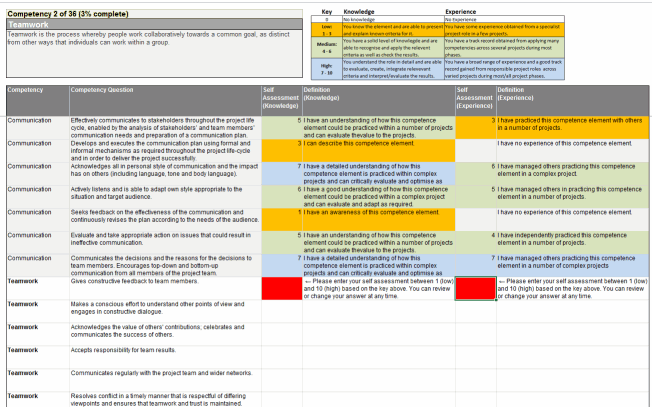
When they complete the last question in regards to the current competency they’re working on, the next batch of questions for the next competency appears, and the definition for that competency overwrites the previous one in the top left:
I’m using CF because I don’t want to use code to do this if I can help it, so I don’t have to deal with security settings or questions about enabling macros. Plus I’m just there for 4 weeks, and there isn’t going to be a VBA developer picking up the project after me.
But the CF dialog – how shall I put this delicately – seems as if it was built by Microsoft. (Ok, so I threw tact to the wind there. It’s a dog, a pig, and a slug, all rolled into one needy, dirty, slimy son-of-a-bitch pest.) Here’s all it shows me in all of its non-resizable gory. (Yes, gory, not glory.):
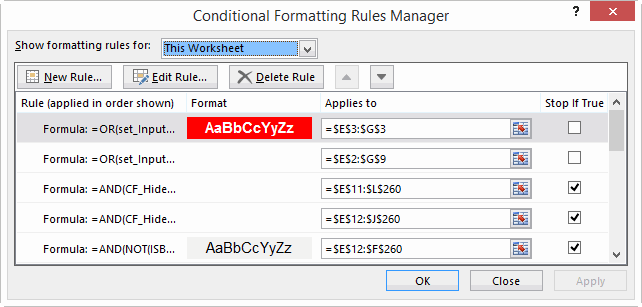
Using it is like trying to build a ship in a bottle inside of another ship in a bottle. Now I know how proctologists feel. If it was half the dialog box that the Name Manager was, it would at least yet you resize so you could see all your conditions at once:

Just look what the Name Manager gives us, by way of comparison:
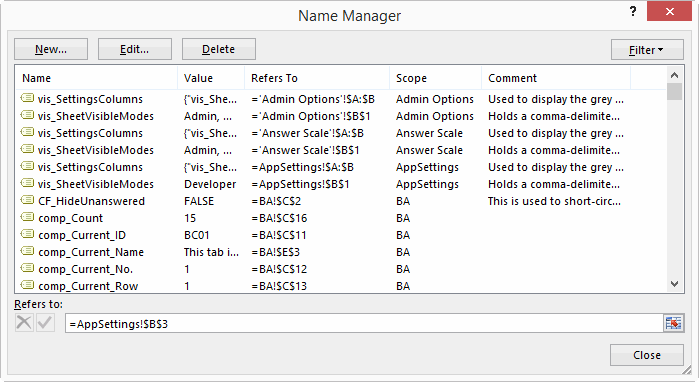
…We get friendly names, notes where we can record what does what, resizable columns, and a resizable dialog. Compared to that, the CF dialog is like the punchline from a Monty Python skit.
“Oh, we used to dream of having a resizable dialog box.”
What’s worse, I keep noticing that the order of my CF conditions gets scrambled – maybe when I copy the sheet to a new template, maybe when I insert or delete columns, maybe when I don’t look suitably impressed whenever it does work correctly. I don’t know.
So I thought I’d look for a way to back them up. I looked at Dicks’ posts Listing Format Conditions and Listing Format Conditions Redux, but those would need more work still in order to record the formatting, and then a routine to restore everything from the storage table.
But then I discovered this: If you fire up the macro recorder, bring up the CF dialog box, select Manage Rules, select Show formatting rules for This Worksheet, and then makes some trivial change – such as click the down arrow to move the currently selected CF condition down one, then click the up arrow to put it back:
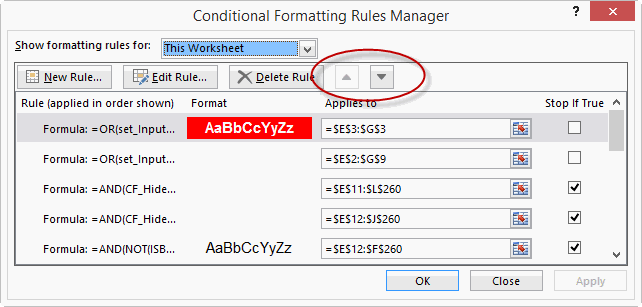
…then as soon as you push OK the Macro Recorder spits out a macro that clears all the format conditions on the entire sheet, and then builds those CF rules again from scratch. All of them. Here’s an excerpt:
Cells.FormatConditions.Delete
Range("PM[Definition " & Chr(10) & "(Experience)]").Select
Range("G14").Activate
Selection.FormatConditions.Add Type:=xlExpression, Formula1:= _
"=AND(ISBLANK($I14),$T14=FALSE)"
Selection.FormatConditions(Selection.FormatConditions.Count).SetFirstPriority
With Selection.FormatConditions(1).Font
.ThemeColor = xlThemeColorDark1
.TintAndShade = 0
End With
Selection.FormatConditions(1).StopIfTrue = True
Range("PM[Definition " & Chr(10) & "(Knowledge)]").Select
Range("G14").Activate
Selection.FormatConditions.Add Type:=xlExpression, Formula1:= _
"=ISBLANK($G14)"
Selection.FormatConditions(Selection.FormatConditions.Count).SetFirstPriority
With Selection.FormatConditions(1).Interior
.PatternColorIndex = xlAutomatic
.ThemeColor = xlThemeColorDark1
.TintAndShade = 0
End With
Selection.FormatConditions(1).StopIfTrue = True
End Sub
That – my friend – is your CF backup. The only thing wrong with this code is that it keeps putting the line Range(“G14″).Activate in the middle of each block for some strange reason. That happened to be the cell I had selected when I recorded the macro. But if you do a find and replace on the code to ditch it in favor of a more helpful “” then the code works fine. (Yes I know that CF is relative, but that’s still no reason why it should select the cell I have selected and then apply the formatting to it rather than to the desired target).
Now what would be cool is if someone out there was to code up a routine that uses extensibility to read this from the VBE and populate a handy table in the worksheet with all the parameters. Extra credit to someone who devises a way to make the macro recorder fire up and do this automatically for each sheet.
Even better: it would be amazing if Microsoft would show the CF dialog the slightest amount of love. CF could be one of the most powerful features of Excel for non coders. But not as it stands at the moment. Right now, it’s a pigdogslug.