



Displaying Formulas and Column Width
To display formulas in Excel, as opposed to displaying the formula results, you press the Ctrl+` key combination (that’s an accent grave and it’s to the left of the 1 on most US keyboards). When you do that, Excel helpfully increases the column width to show you more of the formula.
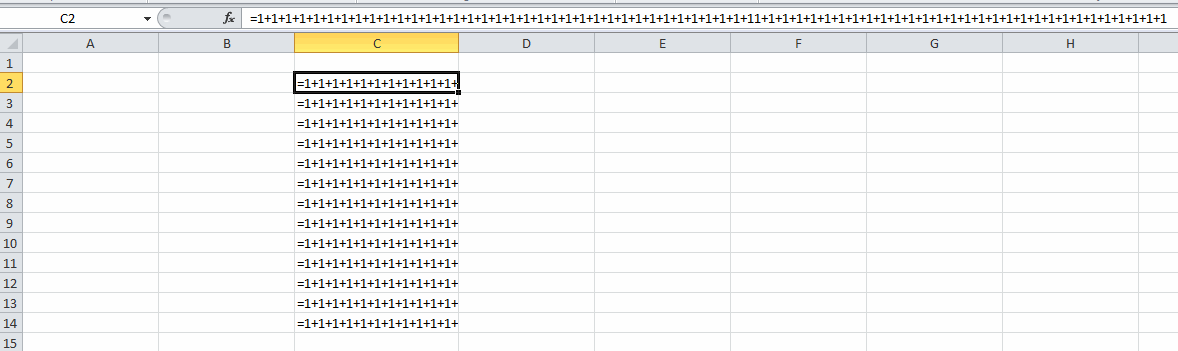
Excel increases the column width, but it doesn’t increase the ColumnWidth. That is, the ColumnWidth property is still the same even though you can see more characters than before. I’m not sure what exactly is changing here, but that’s not really the point of this post. The increase in width is about double. The percent of times that Excel makes the column wide enough to show me what I want to see is 0%.
If I have a 20 character formula, I’m probably not going to use Ctrl+` to check it out. It’s the longer formulas where I need to ensure consistency. I need to increase the column width even more, but that creates another problem. When I change the column width I also change the ColumnWidth. And when I go back to displaying formula results, my column width is now wider than it was. I’m working on a solution, but there’s a lot of moving pieces, so this isn’t fully baked yet.
First I need to store the ColumnWidth before any changes. Then I need to increase the column width so I can see the whole formula. Then I need to set the ColumnWidth back to what it was. For the above formula, that’s pretty straightforward. It’s only about 150 characters. But the one below is about 280 characters and that strategy will make the column wider than the screen – no good.
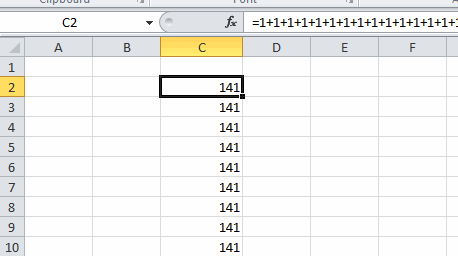
Round one of my attempt to replace the Ctrl+` behavior is below.
Sub Macro1()

    Static dColWidth As Double
    Dim i As Long
    Dim ash As Worksheet
    Dim aw As Window 'activewindow
    Dim ec As Range 'activecell.entirecolumn

    Set ash = ActiveSheet
    Set aw = ActiveWindow
    Set ec = ActiveCell.EntireColumn

    'toggle
    aw.DisplayFormulas = Not aw.DisplayFormulas

    If aw.DisplayFormulas Then
        'store the old column width
        dColWidth = ec.ColumnWidth
        ec.AutoFit

        'Keep reducing the width by 10 until it fits on the screen
        For i = ec.ColumnWidth To ash.StandardWidth Step -10
            If ec.Column < aw.VisibleRange.Cells(aw.VisibleRange.Cells.Count).Column Then Exit For
            ec.ColumnWidth = i
        Next i

    Else
        'If the static variable loses scope, set
        'the column to the standard width
        If dColWidth > 0 Then
            ec.ColumnWidth = dColWidth
        Else
            ec.ColumnWidth = ash.StandardWidth
        End If

    End If

End Sub
To combat really long formulas, I AutoFit the formula, then reduce the column width until it fits on the screen. It’s a bit more indirect than converting points to characters and all that funny business associated with ColumnWidth, but I like it. I haven’t tried to break it with hidden columns or anything like, so there’s probably some fragility there.