



Thanks to Dennis Wallentin for another article:
Paste Special Dialog – Operating on a Range of Data
For some of you this is already known, but I know there are users who are not aware of the power of the Paste Special Dialog.
Suppose you have been asked to create a budget for next year. The budget will be based on last year’s sales figures and the budget should be 10% more than last year.
As usual, there are several ways to skin a cat. A quick method to achieve it is to use the Paste Special Dialog. The following screen shot shows the details:
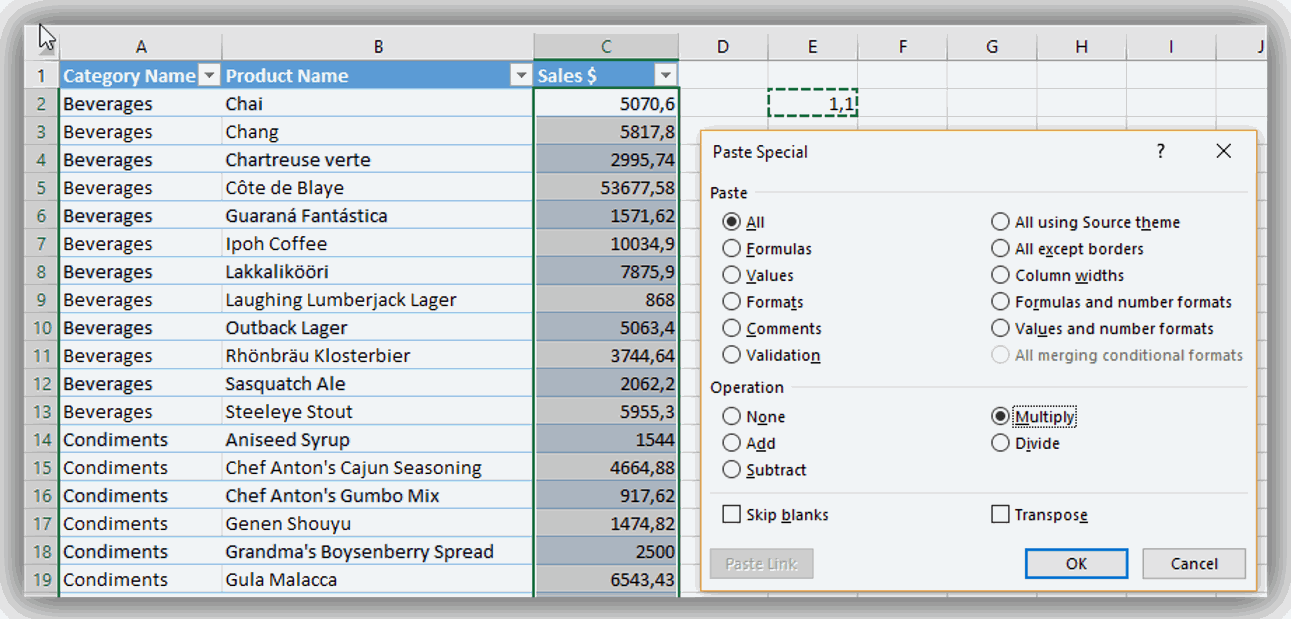
- First we enter 1.1 (which represents the 10% increase) in an empty cell in the worksheet.
- Next we copy the source, i.e. the cell that holds the value.
- Then we select the targeted range of data that is to be increased with 10%.
- Next we select the command
Paste Special…from the menu by Right Clicking on the targeted range. - In the Dialog we select the operation
Multiplyand then hit theOKbutton.
The output of the operation is showed in the following screen shot:
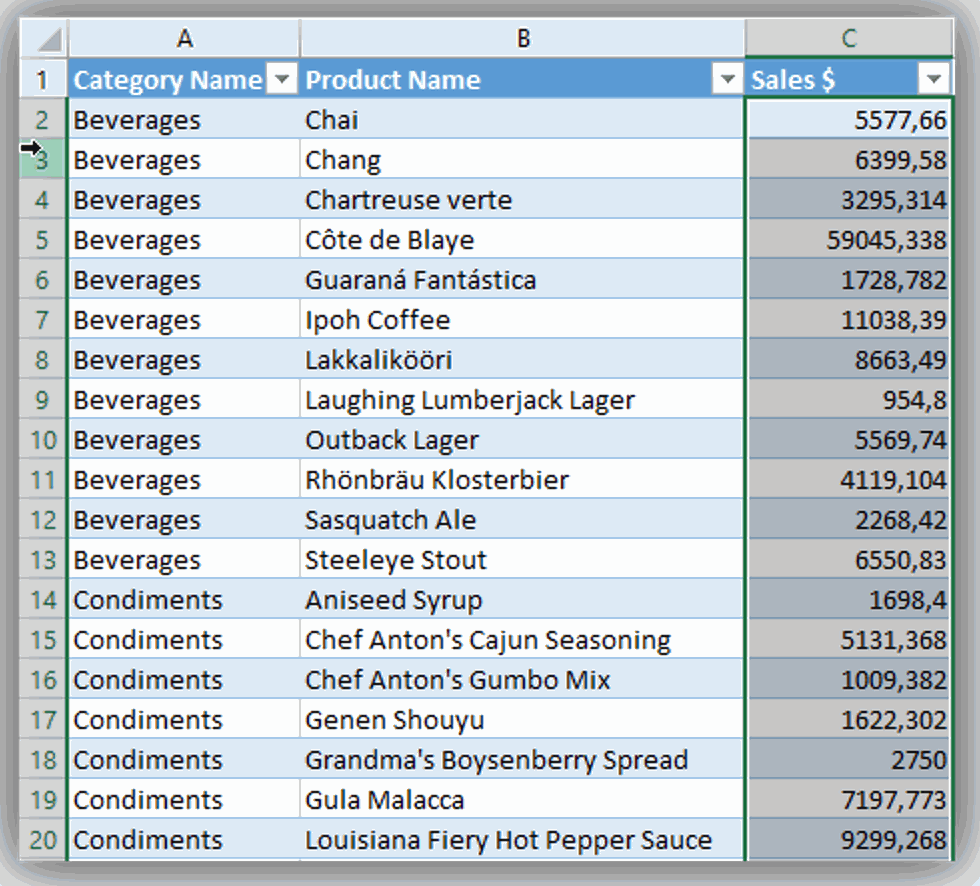
In my opinion this is an excellent way to quickly update a range of data.
Recently I made a suggestion to improve the operation. Instead of using a cell in a worksheet as the source I suggested to add a numeric field in the Paste Special Dialog. The following picture shows the idea:
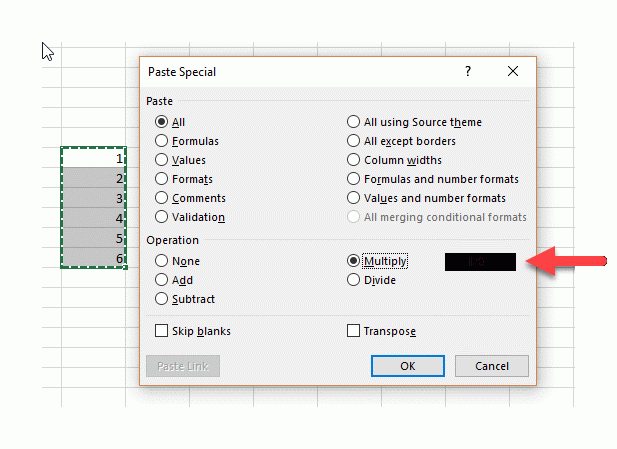
If You think it’s a good idea, then I suggest that You vote for it at UserVoice:
https://excel.uservoice.com/forums/304921-excel-for-windows-desktop-application/suggestions/17352001-paste-special-add-a-numeric-field-when-using-one
Enjoy!
Thanks and all the best,
Dennis