


I got a new computer at work. This is how big it is.


It’s got an i7-6700T @2.8GHz and 16GB or RAM. All in that little box. It also has Windows 10, which I’m finding quite acceptable. I guess I should have upgraded my home computer when it was free. I’m opposed to Microsoft’s Windows 10 revenue model on principal and that really hasn’t changed.
The other major change is that I have Office 2010 64 bit. You can read some of my comments at the bottom of this post. To be fair, Microsoft doesn’t recommend installing 64 bit unless you have a specific reason. I don’t have a good reason, I just want Excel to address as much memory as possible. And it does. And it’s super-fast. Except when it crashes. My email to IT reads as follows:
I give up. Office 64bit sucks. When you have time, I’d like it uninstalled and 32bit installed.
Thanks,
Dick
Finally, I’m making the switch from Firefox to Chrome. It’s been an adjustment, but generally I like it. My biggest blocks to switching have been Type Ahead Find and the treatment of diverted tabs. I installed an extension called Type-ahead Find that takes care of the first problem. And I installed an extension called Inoreader Companion which takes care of the second problem within Inoreader. The vast majority of diverted tabs for me happen in Inoreader. I still don’t like how Ctrl+Click opens the tab just to the right rather than at the end, but it’s only a minor annoyance and I’ll get used to it.
Here are the rest of the settings I make when I do a clean install.
Windows
- Pin programs to taskbar.

That’s Outlook, Chrome, Excel, an RDP to our accounting software, SQL Server Management Studio, and Notepad++. I leave Outlook running all the time so it processes my client side rules. I start the rest of them each morning by holding down the Windows key and typing
23456. Everyone in my office closes the entire application when they’re done with it (except Outlook). That means every time they want to work in Excel, they start Excel. They don’t have 16 GB of RAM, either, so it takes a few seconds. I just don’t understand why they don’t leave it running all day. - Uncheck Hide Extensions for Known File Types
- Check Show Hidden Files. I did these the old fashioned way, but have discovered that they are on the View menu in Windows Explorer. They’re called
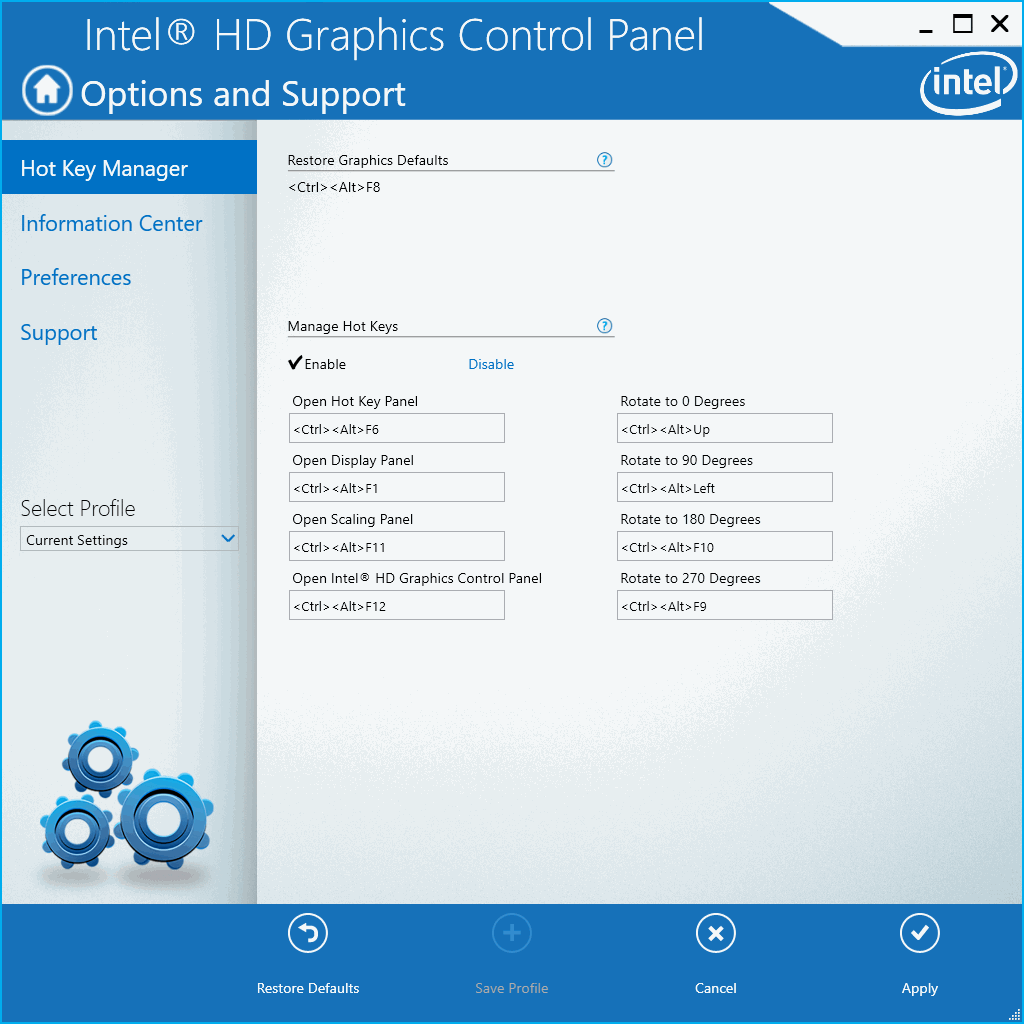
File name extensionsandHidden items. Just another little Windows 10 convenience. Although I still argue that File extensions should be on by default. - I use Ctrl+Alt+Down and Ctrl+Alt+Right for a couple of Excel macros so I can’t have them rotating my screen around.

Excel
- Uncheck Show Mini Toolbar on Selection
- Include this many sheets = 1
- Uncheck Use GetPivotData functions for PivotTable references
- Turn off Autocorrect – Replace as you type: Internet and network paths with hyperlinks
- Uncheck Allow editing directly in cells
- Uncheck Show paste options button when content is pasted
- Show this number of Recent Documents = 50
- Uncheck Show all windows in taskbar
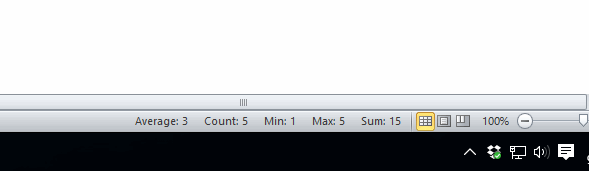
- Add Max and Min to Status bar
Visual Basic Editor
- Tools – Options – Break in Class Modules
- Uncheck Auto Syntax Check
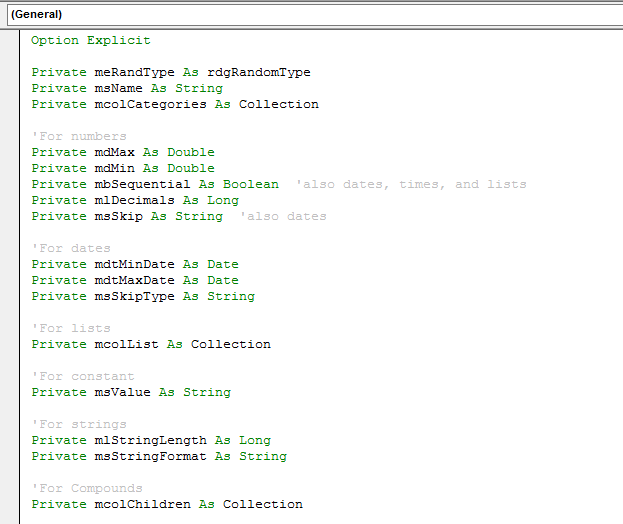
- Check Require variable declaration
- Comments to gray and Keywords to green. I don’t write a ton of comments. I’m a proponent of writing self-documenting code and only commenting when necessary. But when I do comment, I certainly don’t want it slapping me in the face. If I need clarification, I’ll look for comments. Otherwise I prefer not to see them. I realize there are others in the VBA community who have the exact opposite opinion. I’m in favor of people having opinions about programming in VBA even if I don’t share them.
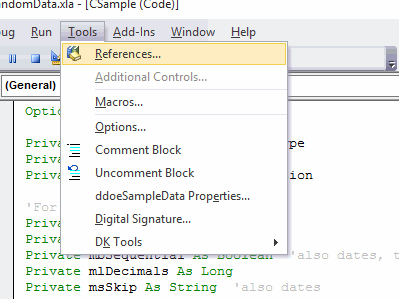
- Add CommentBlock and Uncomment Block to Tools menu
Outlook
- Compose messages in this format: Plain Text
- When a new message arrives Play a sound – off
- When a new message arrives Briefly change the mouse pointer – off
- When a new message arrives Display a Desktop Alert – off
- Check When replying to a message that is not in the inbox, save the reply to the same folder
- Check Always send a read receipt. I hate that some people always request read receipts. But I also hate that prompt, so I just gave in.
- Add space as special character
- Put commas as start of row
- Put space after comma
- Add snippet gob =
GROUP BY $PASTE$ ORDER BY $PASTE$I have to copy the SELECT list for this to work. I wish I could make it work without copying. That is, it would group by and order by everything in the SELECT list that wasn’t an aggregate. - Add snippet ssfgross =
SELECT * FROM dbo.OSASGrossMargin_vw WHERE GLYear = $DATE(yyyy)$Just a query I start with a lot. We’re a fiscal year end, so the $DATE$ variable doesn’t quite work.
One last word about 64 bit office. You can’t program the menus in the VBE as I documented here. My temporary fix for that was going to be AutoHotKey. This is bad, so be sure to plug your nose if you choose to consider reading. Here’s my AHK script:
:*:vbPrivate::Application.Run("VBHelpers.xla{!}ConvertPublicToPrivate")
:*:vbParent::Application.Run("VBHelpers.xla{!}CreateParentClass")
:*:vbReset::Application.Run("VBHelpers.xla{!}ResetVBEState")
:*:vbFindBy::Application.Run("VBHelpers.xla{!}CreateFindBy")
:*:vbFill::Application.Run("VBHelpers.xla{!}MakeFillFromRange")
:*:vbCallers::Application.Run("VBHelpers.xla{!}ListProcedureCallers")
I’d go to the Immediate Window and type, for example, vbPrivate. It would expand into an Application Run statement and I’d press Enter to execute. I told myself that this is how I would access these procedures until I was able to rewrite this as COM add-in or a .Net thingy or however people automate the VBE these days. I’m pretty sure I would have just kept using this method and never actually rewrote it. Now that I’m switching back to 32 bit, it’s a non-issue.
I hope you’ve enjoyed this small glimpse into my computing life.