



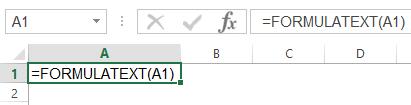
Since Excel 2013, Microsoft has given us a FORMULATEXT function, which if you point at a cell will do just that. Here’s a naughty snapshot of FORMULATEXT playing with itself in the corner:
I thought I’d have a go at writing a FormulaArray function to complement it, because when I’m building up a complicated formula that uses lots of array manipulation, then I like to document how all the different arrays within it fit together. (I was going to say “come together” there, but after that crack about FORMULATEXT playing with itself, I thought better of it. But now that I’ve said crack, I’m gonna throw caution to the wind and say wind too.)
Currently I document my formula beasts by either either array-enter a sub-part in the sheet with some notes, like this:
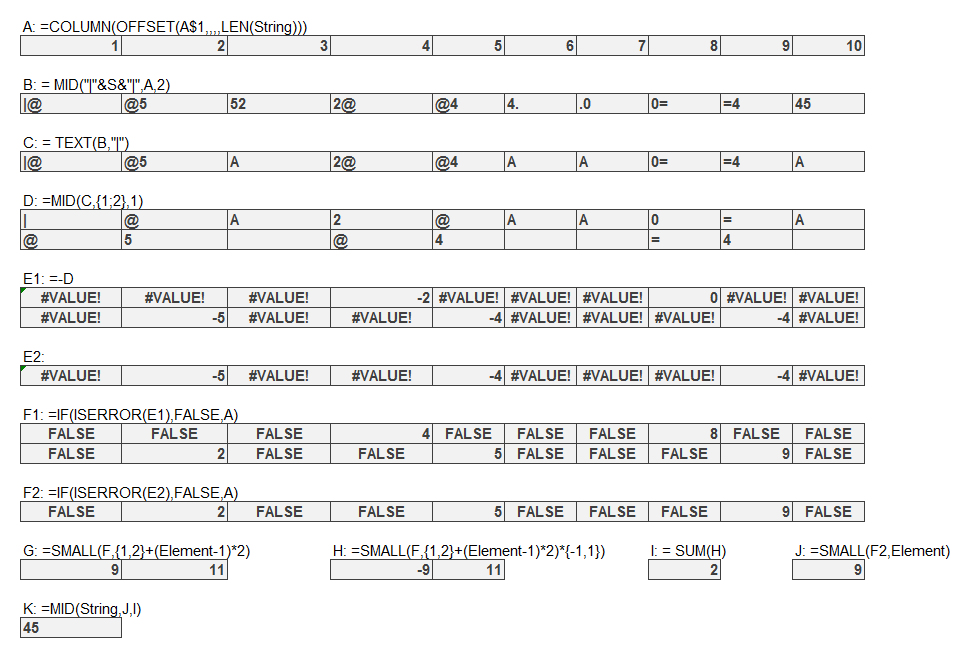
…which shows how my ExtractNumber formula works, or I enter the desired formula in one cell with a ShowFormula to the left and a hand-rolled hard-coded array to the right, like in this table where I’m documenting a few ways to dynamically generate consecutive integers:
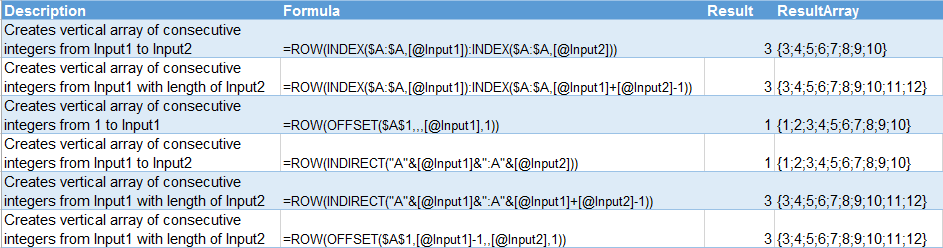
I get that ResultArray manually, by clicking in the formula bar, pushing F9, copying the resulting evaluated array, then pasting it in another cell. Tedious. Especially when I later make a change to that sub-part, because then I get to do those steps all over.
So I started to roll my own FormulaArray function. I got a bit bogged down in the joining bit, but after about an hour of Googling, I rediscovered Nigel Heffernan’s code for joining two dimensional arrays. Which is very concerning, because I discovered it like just 10 days ago, and even wrote an extensive blog post on it right here. Senility is obviously setting in. If I start saying the same thing over and over like my mother does, just shoot me. If I start saying the same thing over and over like my mother does, just shoot me.
Anyways, Nigel’s function needs a 2D array. You can create an array from formula text by using VBA’s Evaluate method. If the formula returns a Row vector or a 2D vector, then Evaluate nicely turns it into a 2D vector. But here’s the rub: if the formula returns a Column vector, then Evaluate only gives us a 1D vector, which ain’t gonna wash with Nigel’s function:
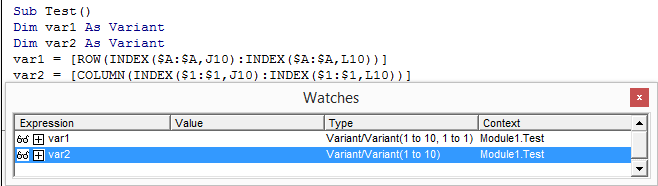
So what we need to do is TRANSPOSE any formulas that would return Column vectors, because chucking a TRANSPOSE into the mix has the desired effect:
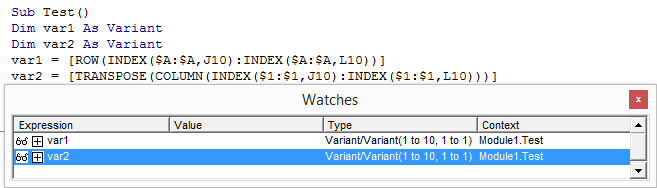
Note that I’m using the square brackets [ ] shortcut for Evaluate. I could just have easily done it like this:
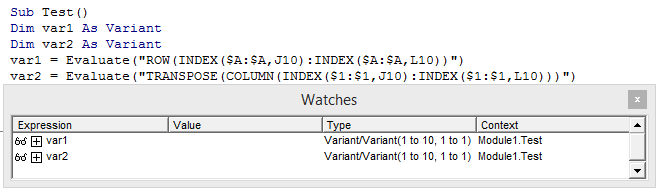
Okay, so we know that if our formula string returns a Column vector, we’ve got to transpose it. But how can we tell that ahead of time? I can’t think of a way. So I just do this:
Dim var1 As Variant
Dim var2 As Variant
Dim lb As Long
var1 = Mid(Target.Formula, 2, Len(Target.Formula))
var2 = Worksheet.Evaluate(var1)
On Error Resume Next
lb = LBound(var2, 2)
If Err.Number <> 0 Then
var2 = Application.Transpose(Worksheet.Evaluate(var1))
FormulaArray = Join2d(var2, ",", ";")
Else:
FormulaArray = Join2d(var2, ";", ",")
End If
End Function
So I evaluate the formula as if it’s a Row vector, then check if I’ve got 2 dimensions as a result. If not, it must have been a column vector, in which case I transpose it, then reevaluate it. Shame about the double evaluation, but I can’t think of a foolproof way to do it differenty, other than perhaps array entering the formula into a 2D range on the worksheet and looking at where the #N/A! errors fall.
Anyway, it seems to work just fine:

..unless you happen to be using Structured Table References, and your arguments happen to use the @ table notation to point at something on the same row:

…or unless you happen to have a formula with the INDIRECT function in it:

With the ThisTableRow thing, I guess I can just replace the @[SomeColumn] bit with the actual address, but I can’t think of easy ways around the INDIRECT thing. Anyone got any ideas?
Sample workbook:
There’s a handy post over at Charles Williams’ site that talks about some other quirks of Evaluate that’s worth checking out:
https://fastexcel.wordpress.com/2011/11/02/evaluate-functions-and-formulas-fun-how-to-make-excels-evaluate-method-twice-as-fast/